A clean google ads tag manager conversion tracking setup ties every ad click to a real revenue event in your CRM, not a form fill that never closes. This guide walks the exact container config, the trigger rules that fire on true conversions, the attribution model choices that shape your reporting, and the setup gaps that quietly under-count your account by 20%. Read once and you’ll leave with a working configuration, a debug routine, and the questions to ask before you trust any conversion number a dashboard shows.
The short version. Google ads tag manager conversion tracking setup runs 3 to 6 hours for a clean small account, and 15 to 30 hours for a mid-market rebuild with CRM offline conversions layered in. Get container linking right, keep trigger rules tight, and match the attribution model to your sales cycle. Every ad click then flows to a real conversion event you can audit end to end.
Why Google Ads Conversion Tracking Google Tag Manager Setup Wins
A direct google ads conversion tracking google tag manager pairing outperforms hard-coded pixels for one reason. GTM centralizes every marketing tag, trigger, and variable inside one visible container. Your CRO team can swap forms, and your analytics lead can rewire attribution, without a developer editing site code every single time.
The maintenance case for GTM
Every hard-coded pixel is a hostage. Six months in, nobody remembers which pixel sits on which page. The one bad pixel firing twice is inflating your conversions. The two missing pixels are hiding conversions your account never gets credit for. GTM removes the guessing. Every tag, every trigger, and every variable lives in the same visible container inside a version-controlled workspace.
The debug case for GTM
GTM includes Preview mode. You can walk any page on your site, watch tags fire in real time, and confirm the correct variable values before a change ever goes live. Hard-coded pixels give you no live debug view without cracking open dev tools. If your Google Ads conversion numbers ever look wrong, GTM will show you why inside 30 minutes. Hard-coded setups can take days to diagnose the same issue.
The strategic case for GTM
Your marketing stack will change. New CRMs, new call tracking tools, new attribution models. Every tool needs a pixel or a data layer variable. GTM turns those additions into a 30-minute container update instead of a full development cycle. The strategic value is not just Google Ads. It’s every future platform you’ll want to track without a developer standing between you and the change.
How to Add Google Ads to Google Tag Manager Step by Step
Learning how to add google ads to google tag manager takes five discrete steps. Each one has a common failure mode. Get all five right and your account starts logging conversions cleanly inside 24 hours. Miss any and the account looks like it’s tracking when it isn’t.
Step one, install the GTM container
Install the GTM head and body snippets on every page of your site. WordPress users can use a plugin like Site Kit or GTM4WP. Shopify users install through the theme.liquid file. Custom sites paste the snippets directly. Confirm installation with Preview mode. If GTM doesn’t fire on the confirmation page, no downstream tag will fire either.
Step two, create the Google Ads conversion action
Inside Google Ads, go to Tools, then Conversions, and click New Conversion Action. Pick Website. Fill in the category, value, count, and click-through window. Copy the Conversion ID and Conversion Label from the resulting screen. You will paste these into GTM in the next step. Set the count to “one” for lead gen and “every” for ecommerce transactions.
Step three, build the GTM conversion tag
Inside GTM, click Tags, then New. Pick Google Ads Conversion Tracking as the tag type. Paste the Conversion ID and Conversion Label. Set the trigger to fire on the conversion page or event. Save and preview. In Preview mode, walk through the conversion flow and confirm the tag fires exactly once with the correct values in the Data Layer.

Step four, add the Conversion Linker tag
Add a Conversion Linker tag set to fire on All Pages. This one tag keeps GCLID data flowing across iOS, Safari, and cross-domain journeys where 20 to 40% of conversions would otherwise disappear. Publish the container only after Conversion Linker shows green on every page in Preview mode.
Step five, publish and validate
Publish the container with a dated version name. Fire a real test conversion. Wait 3 hours and check Google Ads under Tools then Conversions. Status should read “Recording conversions.” If it still says “No recent conversions” after 24 hours, jump to the debug section below.
Google Ads Tag Manager Conversion Tracking Attribution Choices
Google ads tag manager conversion tracking hands you an attribution model choice inside Google Ads. Data-driven attribution is the default for eligible accounts today. Last click still surfaces for smaller ones. Pick the model that matches your sales cycle and reporting maturity, not the one your CFO expects because it looks familiar on a slide.
| Attribution model | Fits account size | Click-through window | View-through window | When to pick it |
|---|---|---|---|---|
| Last click | Under 300 conversions | 30 days | 1 day | Small accounts still learning |
| Data-driven | 300+ conversions | 30 to 90 days | 1 to 7 days | Growth stage and above |
| Position-based | Manual override only | 60 days | 7 days | Long B2B cycles, custom BI |
| Linear | Reporting-only choice | Any | Any | Multi-touch dashboards |
Data-driven attribution when it works
Data-driven attribution uses machine learning across your conversion history to weight touchpoints. It needs at least 300 conversions and 3,000 ad interactions across the account inside a 30-day window to activate. Below that threshold, Google falls back to last click even if you selected data-driven. Growth-stage accounts and above should default to data-driven. Small accounts should stick with last click until conversion volume clears the threshold.
Click-through and view-through windows
Set click-through windows at 30 days for lead-gen accounts with sales cycles under 60 days. Extend to 90 days for B2B accounts with longer cycles. View-through windows should stay at 1 day for lead gen and 7 days for ecommerce. Longer view-through windows over-credit display and video impressions. Keep them tight or your ROAS reporting inflates.
Cross-device and Enhanced Conversions
Cross-device attribution is on by default in Google Ads. Enhanced Conversions add hashed first-party data to improve the match rate. Together they recover 15% to 25% of conversions that browser tracking used to miss. If your compliance team allows first-party hashed data sharing with Google, enable Enhanced Conversions. Configure it inside the same GTM conversion tag with the Enhanced Conversions setting toggled on.
How to Connect Google Ads With Google Tag Manager and Your CRM
Knowing how to connect google ads with google tag manager is only half the job. The tracking loop stays incomplete until your CRM sends closed-won revenue back to Google Ads. Offline conversion imports are the piece that binds an ad click to a real dollar. Most agencies skip the work. The ones that don’t build reporting your CFO can audit end to end.
Capturing the GCLID at form submission
The Google Click ID (GCLID) is the identifier that ties an ad click to a downstream conversion. Capture it at form submission by reading the gclid URL parameter with a GTM Custom JavaScript variable, then push it into a hidden form field. That GCLID needs to land in your CRM record. Without it, the offline conversion import has nothing to match against.
Uploading offline conversions to Google Ads
When a lead closes, export the GCLID plus the deal value and close date. Upload as a CSV inside Google Ads under Conversions then Uploads. Or automate the upload through Zapier, HubSpot’s native integration, or a Salesforce connector. Weekly uploads are the industry standard. Daily uploads are the gold standard for accounts spending over $25,000 a month.
Attribution back into your dashboards
Once offline conversions are flowing, Google Ads shows both online conversion actions and offline conversion actions in the same report. Data-driven attribution picks up the extra signal and starts weighing campaigns differently. Your CFO finally sees pipeline dollars tied to Google Ads spend. That end-to-end thread is the whole point of the GTM plus offline conversion setup.
How Real Conversion Tracking Programs Perform in Practice
Case study numbers help calibrate what a real setup produces. Two Redefine Web SaaS clients, one fintech and one EdTech, show what a clean google ads conversion tracking google tag manager setup produces once the plumbing is correct. Real numbers below.
Fintech SaaS on a full-funnel B2B program
A fintech SaaS in the payments space ran a fragmented tracking setup with roughly 5 inbound leads a month and no CRM attribution. Our team rebuilt the GTM container, added GCLID capture, and configured offline conversion imports from HubSpot. Twelve months in, monthly inbound leads tripled, organic traffic grew 5 times, and pipeline generation hit over £1.8 million. The tracking rebuild let attribution show which paid keywords drove the pipeline.
EdTech SaaS on persona-driven ads
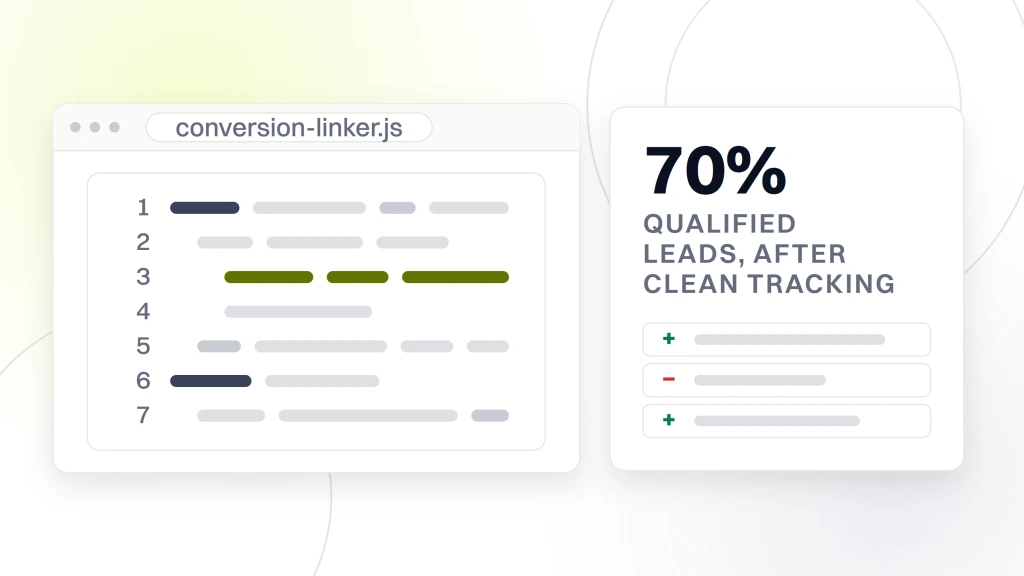
An EdTech SaaS LMS serving K-12 and higher education ran broad-targeted ads with manual bidding and 0.2% engagement. After swapping to persona-driven Google and LinkedIn campaigns with structured bidding and clean conversion tracking, qualified leads climbed 70% and CPA dropped 28%. The GTM setup let Google’s smart bidding work at last because the conversion signal was finally clean.
What both accounts prove
Clean conversion tracking is the foundation, not the finish line. Once GTM catches the right events and CRM offline conversions flow back to Google Ads, smart bidding stops guessing and starts optimizing against real revenue signal. Every downstream campaign decision gets better. The setup work is unsexy. The outcomes are worth the hours.
Debugging Google Ads Conversion Tracking Google Tag Manager Setups
Debug work is the skill that separates a working google ads conversion tracking google tag manager setup from one that only looks correct on paper. Every account carries its own edge cases. The ones you catch on day one save you from a month of undercounting or overcounting later.
Preview mode as the primary tool
GTM Preview mode is the first line of debug. Enable it, walk your site as a user would, and watch tags fire in the Tag Assistant window. Every tag should fire exactly when you expect and not before. Every variable should hold the expected value. If Preview shows the tag firing on the wrong page or with the wrong value, the trigger or variable configuration needs work before the change goes live.
Google Ads Conversion Diagnosis
Google Ads has a built-in Conversion Diagnosis tool under Tools then Conversions. It flags issues like tag not firing, tag firing too often, missing Conversion Linker, and Enhanced Conversion mismatches. Check this dashboard weekly for the first month after any tracking change. Google catches issues your Preview mode does not.
Real-world debug tips
- Duplicate conversions usually mean the tag fires on both a form event and a redirect page. Pick one trigger.
- Missing conversions on iOS usually mean Conversion Linker is not set to fire on All Pages.
- Zero-value conversions with a value set usually mean the Data Layer variable is empty at the moment of fire.
- Ecommerce conversions off by exactly the tax amount usually mean the value variable pulls pre-tax when Google Ads expects total.
- Sudden conversion drops after a site redesign usually mean the new page structure broke the trigger URL match.
Common Google Ads GTM Setup Mistakes That Under-Count Your Account
Every third account our team onboards carries one of the same six tracking gaps. Any single one under-counts conversions by 10% to 30%. Catch them on day one and reporting starts telling the truth.
Skipping Conversion Linker
The most common miss. Without Conversion Linker firing on all pages, Safari and iOS conversions drop by 20% to 40% depending on your audience mix. Every GTM setup should include Conversion Linker on All Pages before any other tag goes live. It takes 2 minutes to configure. It’s still the tag most agencies skip.
Firing conversions on two triggers
Some accounts fire the same conversion on both a form submission event and the thank-you page redirect. That double-fires the conversion. Google’s dedup logic sometimes catches it and sometimes doesn’t. The safe fix is picking one trigger and running it through Preview to confirm the tag fires exactly once per conversion flow.
Missing GCLID capture at form submission
Without GCLID capture, offline conversion imports have nothing to match against. The lead lands in your CRM with no ad attribution. Every form on your site should carry a hidden GCLID field populated by GTM. Skip this and you’ll never tie closed deals back to ad clicks. The setup takes 15 minutes and pays back forever.
Setting the wrong count value
Google Ads conversion actions have a Count setting of “one” or “every.” Lead gen accounts want “one” per session so a user who fills a form twice doesn’t count twice. Ecommerce accounts want “every” so a user buying two products in two orders counts twice. Set the wrong value and your conversion reporting either double-counts or under-counts by exactly the wrong amount.
Maintaining Your GTM Google Ads Setup Over Time
A GTM container that goes live clean today drifts inside 6 months when nobody maintains it. Site redesigns break URL triggers. New form vendors break form submission triggers. Marketing team turnover leaves the container without an owner. Build a maintenance rhythm and the tracking stays honest.
Version control your container
GTM has native versioning. Every publish creates a version snapshot with a required version name. Use it. Name versions with dates and change summaries. When something breaks, roll back the container to the last known good version and diagnose from a stable base. Container versioning takes 30 seconds per publish and saves hours of debug time when things go wrong.
Quarterly audit checklist
Every quarter, walk the container end to end. Confirm Conversion Linker still fires on All Pages. Confirm every conversion tag still matches a live Google Ads conversion action. Confirm URL triggers still match current site paths. Confirm Data Layer variables still hold expected values. Fifteen minutes of quarterly audit prevents 3 months of tracking drift.
Documentation as the maintenance floor
Every tag, every trigger, and every variable should have a note field explaining what it does. When your marketing lead leaves and a new hire opens the container, they need context. GTM has a Notes field on every element. Use it. Documentation is the difference between a container an agency inherits gracefully and one they rebuild from scratch on day one.
Picking the Right Tracking Depth for Your Account Stage
The right tracking depth at $2,000 in monthly ad spend is not the right depth at $50,000. Overbuilding burns hours. budget. Match the tracking work to the scale of the account.
Small accounts under $3,000 in spend
Basic setup. GTM container, Conversion Linker on All Pages, one or two conversion tags for form fills or calls, last-click attribution. Skip Enhanced Conversions and offline conversion imports until spend clears $5,000 a month. Small accounts don’t have enough conversion volume to benefit from the extra work.
Growth-stage accounts at $5,000 to $25,000 in spend
Mid-tier setup. Add Enhanced Conversions, GCLID capture on all forms, weekly offline conversion imports if your CRM supports it, and data-driven attribution once you clear the 300-conversion threshold. This is the tier where tracking work starts paying its own fee back inside 90 days.
Scale accounts above $25,000 in spend
Full tracking stack. Daily offline conversion imports, custom Data Layer events for every meaningful action, server-side GTM for iOS resilience, cross-domain tracking, and multi-touch attribution modeling in a BI tool like Looker or Tableau. This tier is where tracking becomes a competitive advantage rather than a table-stakes requirement.
Link Google Ads to Google Tag Manager and Book Better Reporting
The bottom line. Choosing to link google ads to google tag manager is a plumbing problem before it turns into a reporting problem. Fix the plumbing and every downstream decision improves. A clean google ads tag manager conversion tracking foundation makes every downstream reporting decision easier. If you want help auditing an existing setup, or building one from scratch, the Redefine Web team runs paid programs with GTM configurations from small business through enterprise. Start with the google ads management services page. For broader retainer options, see PPC management services. B2B teams should read the B2B PPC agency service page. SaaS teams should read SaaS PPC services. External references worth reading, the Google Tag Manager quick start guide and the Google Ads conversion tracking documentation. Retainers start at $999, $1,499, $2,499, and from $4,500 a month, with ad spend billed separately.