WordPress updates for chiropractors are the recurring maintenance work that keeps your practice site secure, fast, and compatible with the plugins running your booking form, review widgets, and analytics stack. Over 90% of hacked WordPress sites got in through an outdated plugin, and the window between vulnerability disclosure and active bot exploitation is often under 48 hours. Weekly WordPress updates for chiropractors are the difference between a clean site on Monday and an emergency ticket on Tuesday.
This guide walks through the safe weekly workflow. You get the staging clone steps, the plugin batch order, the 90-second post-update test, and the rollback plan when an update breaks something visible. You also get the exact 25-minute Monday routine that keeps most independent practices ahead of the bots without opening a support ticket.
Bookmark this and treat it as the recurring rhythm your practice site depends on.
What WordPress updates for chiropractors cover
WordPress updates for chiropractors cover four categories. WordPress core, active theme, active plugins, and PHP version at the server level. Each category has its own release cadence, testing steps, and risk profile. Treating them all the same way is the fastest route to a broken production site.
WordPress core pushes minor security releases every 6 to 8 weeks and major feature releases roughly twice per year. Minor releases (5.9.1, 6.4.3) usually auto-update safely. Major releases (6.5, 6.6) need staging testing since they can break plugin compatibility. Theme updates depend on the vendor. Premium themes from StudioPress, Kadence, or GeneratePress push new builds every 2 to 4 weeks. Free themes update irregularly.
Plugin updates are where the real risk lives. A busy practice site runs 25 to 50 plugins, and any one plugin update can conflict with another, break a shortcode your homepage depends on, or push a fatal error that takes the site offline. The safe rule. Never update a plugin on production without testing on staging first. Never batch more than 5 plugins at once. Always keep the latest backup one click away.
PHP updates sit at the server level and get skipped by most owners. When your host asks if you want to move from PHP 8.0 to 8.2, the answer is yes, but only after staging testing since some legacy plugins break on newer PHP. That’s why WordPress updates for chiropractors cover all four categories, not just the flashy core notifications in the admin bar.
Why WordPress updates for chiropractors cannot slip
The vulnerability window between plugin patch and active exploitation is narrow. Wordfence data shows most WordPress plugin vulnerabilities go from public disclosure to active bot exploitation within 24 to 72 hours. Every week you delay a plugin update, you’re betting that no bot has scanned your site yet, and bots scan constantly.
Patient data raises the stakes. A chiropractic practice site handling intake forms carries PHI (protected health information) at rest and in transit. A breach through an outdated plugin isn’t just an inconvenience, it becomes a HIPAA reporting event with mandatory patient notification, potential fines, and reputation damage that lingers for months. The recovery cost dwarfs the weekly maintenance cost by 20x or more. For the broader recurring rhythm, the healthcare website maintenance checklist maps monthly and quarterly work alongside the weekly update pass.
Search rankings punish outdated sites too. Google Safe Browsing flags malware within hours of infection, and the malware warning kills your local pack presence overnight. Recovery takes 4 to 8 weeks after the site is clean. Practices that catch the bad plugin in staging never pay that cost at all. WordPress updates for chiropractors are the cheapest insurance policy in the marketing stack. If you are budgeting a full site refresh alongside the maintenance cadence, the chiropractor website cost breakdown covers real tiers and honest ranges. See chiropractor website security checklist for how updates fit into the wider security workflow.
One under-appreciated factor. Patient trust ties directly to site trust. A patient who sees a Google Chrome deceptive site warning at the top of a search for your practice rarely comes back, and often warns friends and family. That single event ripples through word-of-mouth for months. Ranking recovery gets measured in weeks, but trust recovery gets measured in referrals lost across the whole year. Weekly WordPress updates for chiropractors keep the trust intact by making sure the warning never fires in the first place.
The staging environment setup for WordPress updates for chiropractors
Staging is a mirror copy of your production site running on a separate URL where you test updates before touching the live site. Every managed WordPress host (Kinsta, WP Engine, Rocket.net) includes one-click staging in every plan. If you’re on shared hosting, WP Staging Free plugin creates a subdomain staging copy in about 5 minutes.
The staging setup rule. Refresh staging from production before every update cycle. If staging is 3 months out of date, testing on it tells you nothing useful about what will break in production. Clone production to staging Monday morning, run the updates on staging, verify everything works, then push the same updates to production. The whole clone-and-verify cycle takes about 10 minutes on a managed host.
Password-protect the staging URL and add a robots.txt directive to keep it out of search results. Nothing is more embarrassing than staging.yourpractice.com ranking above the real homepage after Google indexed it during a testing period. Both problems get fixed with a single .htpasswd file and a two-line robots.txt block.
One workflow that pays off for multi-location DSO groups. Use a shared staging environment across locations that all run the same theme and plugin stack. Updates get tested once on the shared staging, then pushed to all production sites in parallel. That drops per-location testing time from 30 minutes down to 8 minutes each. Not for every practice, but useful once you cross three or more locations sharing a common tech stack.
Understand the database side too. WordPress staging clones the database at the moment of clone, but any patient forms, appointment bookings, or blog comments that land in production after the clone don’t sync back. That’s why the safe pattern is push files forward, leave the production database alone. When a plugin update requires a database schema change, apply it directly on production after staging verification, never overwrite the whole database.
- One-click clone production to staging every Monday morning
- Password-protect the staging URL
- Block search engines with robots.txt on the staging subdomain
- Never send real patient data through staging forms
- Delete staging environments older than 30 days
The safe update order
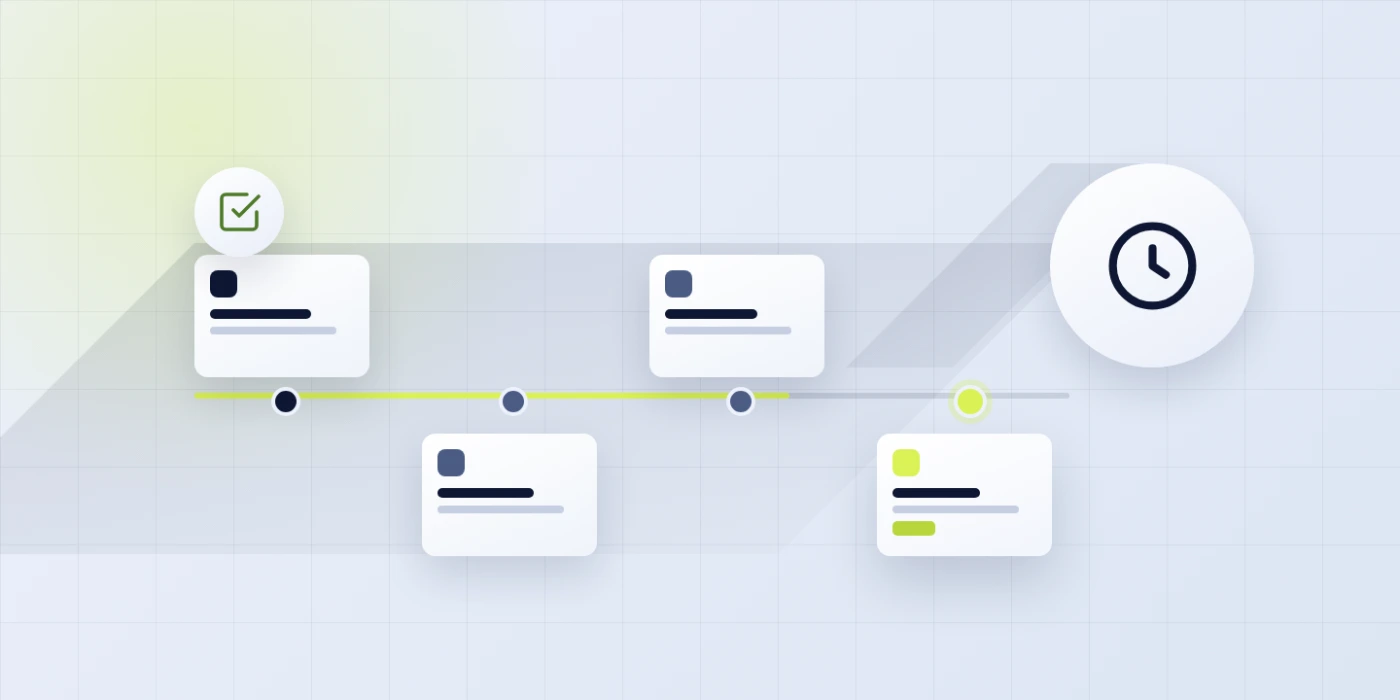
Update in a fixed order every week. That reduces the surface area of what could break and makes debugging easier when something does. The WordPress updates for chiropractors sequence. WordPress core first, then theme, then plugins in small batches of 3 to 5 at a time. Do the whole run on staging before touching production.
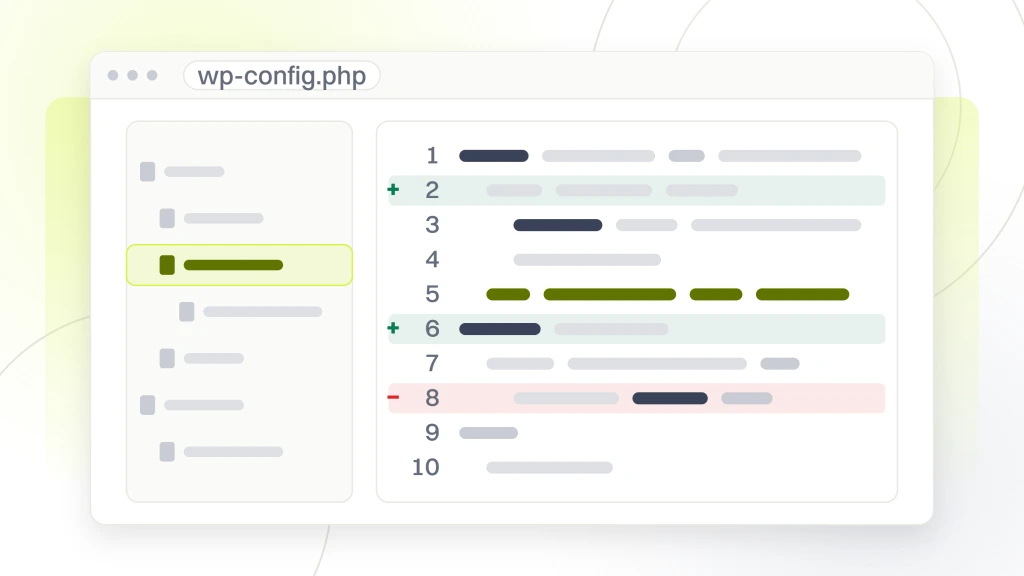
WordPress core goes first since plugins and themes depend on core APIs. If core is out of date, a plugin update targeting a new core API will fail silently. Update core, click through the homepage, service pages, and booking form on staging, then move to theme. Theme updates rarely break anything critical but can shift CSS in ways that need visual verification.
Plugins go in batches sorted by risk. Batch one is low-risk utility plugins (Yoast SEO, Wordfence, WP Rocket, backup plugins). Batch two is form and booking plugins (Gravity Forms, WPForms, WooCommerce if you sell products). Batch three is display and page-builder plugins (Elementor, Divi, block plugins). Test the booking form after every batch since it’s the highest-value element on the site.
Update one plugin at a time if you’ve never done this workflow before. It’s slower but tells you exactly which plugin caused a break. Once you have a stable weekly rhythm, batches of 3 to 5 are safe and cut the total time to 20 to 25 minutes.
What to test after each batch of WordPress updates for chiropractors
Testing after each batch catches breaks before they hit production, and the practical test list is short and focused on the pages that book new patients. Skip broader regression testing across every URL since you’ll bury yourself in hours of clicking. Test three pages, verify one form submission, watch the console for errors.
Test the homepage first. Verify the hero image, primary CTA button, and any embedded booking widget all render. Click into the top-level navigation to confirm menu links work. Test one service page to catch template-level breaks (chiropractic adjustment, sports injury, or your top-earning service). Test the contact or booking form by submitting a real test lead and checking it lands in your inbox or CRM.
Open the browser console during testing and watch for JavaScript errors. Red errors in the console usually mean a plugin update broke a script dependency. Even when the page renders visually, the booking form may fail silently on submit. That’s why real interaction testing beats visual scanning every time.
Check page speed after major updates with PageSpeed Insights. A single plugin update can add 300 to 800 milliseconds of load time if it pushes new scripts. Compare mobile score against last week’s baseline. Anything with a 5-point drop or worse needs investigation before push to production. See page speed for chiropractor websites for the full audit workflow.
One extra habit that saves practices. Keep a browser bookmark folder titled Post-Update Testing with the three critical URLs preloaded. Every Monday you Cmd-click the folder to open all three tabs, run through them in 90 seconds, and log the result. That small friction reduction is the difference between running the workflow every week and skipping it on busy weeks.
Backup before every WordPress updates for chiropractors run
Backups are the rollback plan for WordPress updates for chiropractors when an update breaks something you didn’t catch in staging. Take a fresh backup right before every production update run. Managed hosts do this automatically when you push staging to production. Non-managed setups need a manual backup through UpdraftPlus, BlogVault, or Jetpack Backup.
Verify the backup completed before starting updates. A backup that failed silently is worse than no backup since you assume you can roll back. The backup notification should confirm file count, database size, and off-site upload success. If any of the three failed, retry before touching WordPress.
Store backups off-site, never on the same server as the site. If your host gets hit with ransomware, the backup on the same server is gone with the site. Amazon S3, Backblaze B2, Google Drive, and BlogVault own storage all handle off-site correctly. Retain 30 days minimum, 90 days ideally.
Test the restore quarterly. Spin up a fresh staging environment, restore a random 3-week-old backup, and verify the homepage plus booking form work. Most owners discover during a real emergency that their backup system never worked in the first place. The 30-minute quarterly test prevents the 48-hour emergency.
| Backup element | Required frequency | Storage location |
|---|---|---|
| Files (WordPress + uploads) | Daily automated | Off-site (S3, B2, provider) |
| Database | Daily automated | Off-site (same provider) |
| Pre-update snapshot | Before every update run | Off-site + provider snapshot |
| Retention window | 30 to 90 days | Rotate oldest out |
| Restore test | Quarterly | Staging environment |
Rollback plan when something breaks
Even with staging testing, occasionally a plugin update from your WordPress updates for chiropractors cycle breaks production. The rollback plan needs to be documented, tested, and executable in under 10 minutes. If rollback takes an hour, you’re losing patient bookings the whole time.
The fastest rollback is a plugin version restore. WP Rollback Free plugin lets you downgrade any WordPress.org plugin to the previous version in two clicks. Install it once, keep it dormant, use it when needed. For premium plugins, download the previous version .zip from your license account and upload it through the plugin installer.
If the site is completely broken (white screen, 500 error), roll back to the pre-update backup. Managed hosts have one-click backup restore in the dashboard. UpdraftPlus and BlogVault have similar one-click restores. That wipes any changes made after the backup, so use full restore only when nothing else works.
Document the incident. Which plugin broke, which version, what error appeared, and how the rollback resolved it. File a support ticket with the plugin vendor. Wait 1 to 2 weeks for a patched release, then re-test on staging before re-attempting the update. Skipping this documentation step is why the same plugin keeps breaking sites in the same way.
Keep the rollback plan documented in a spot everyone at the practice can access. A printed one-page cheat sheet inside the reception desk drawer works. It should list your host support phone number, your maintenance vendor emergency contact, the WP Rollback plugin install steps, and the one-click backup restore path in your host dashboard. When the site is down, panic makes people forget obvious steps.
Auto-updates and when to trust them
WordPress pushes auto-updates for security releases by default as of version 5.5, and most plugins now let you opt in to auto-updates per plugin. Auto-updates cut the manual work but introduce a new risk. A bad plugin update landing at 3 a.m. with nobody watching to catch the break.
The reasonable middle ground for WordPress updates for chiropractors. Turn on auto-updates for security patches on core only. Leave feature releases (major versions) as manual weekly updates. For plugins, opt in to auto-updates only for low-risk utility plugins with a strong track record (Wordfence, Yoast SEO, Akismet, WP Rocket). Keep manual control on high-risk plugins that touch layout or booking (page builders, form plugins, e-commerce).
Combine auto-updates with monitoring. If UptimeRobot or Better Uptime pings your site every 5 minutes, you catch downtime within minutes of an auto-update breaking the site. Set the pings to include both the homepage and the booking form URL since they can break independently of each other.
One habit that saves practices during auto-update disasters. Pin plugin versions in the composer.json file if you run WordPress under a build system, or maintain a spreadsheet of known-good plugin versions. When rollback is needed, you know exactly which version to restore without guessing.
One final auto-update rule. Never enable them on the day before a major campaign push. If you launch Google Ads on Thursday, disable auto-updates Wednesday night and re-enable them Friday morning. The small operational cost beats the risk of a plugin auto-update breaking the site during the highest-cost hour of paid traffic. Practices that skip this step learn it the expensive way.
The 25-minute Monday morning routine for WordPress updates for chiropractors
This is the working weekly routine. Run it before the first patient of the week arrives. The whole thing takes 20 to 30 minutes if nothing breaks, longer if something does. Log each step in a shared Google Sheet or Notion database so the next person picking it up has full context.
Minutes 0-5. Clone production to staging, verify staging renders. Check the overnight backup ran and off-site copy exists. Note down any error alerts from Wordfence or Search Console for the week.
Minutes 5-15. On staging, run WordPress core update, then theme update. Test homepage, one service page, contact form on staging. If anything breaks, note and stop. If clean, continue. Update plugins in batches of 3 to 5 sorted by risk (utility first, forms second, builders last). Test after each batch.
Minutes 15-25. Push all staging updates to production via one-click sync (managed host) or manual repeat (shared host). Re-test homepage, service page, contact form on production. Update the log with plugin versions, any errors caught, and total time. Close out by scanning the Wordfence dashboard for the week and confirming no scan alerts fired.
- Minute 0-5. Clone staging, verify backup, check alerts
- Minute 5-10. Update WordPress core and theme on staging
- Minute 10-15. Update plugin batch 1 (utility), test
- Minute 15-20. Update plugin batches 2 and 3, test after each
- Minute 20-25. Push staging to production, re-test, log results
Common WordPress update disasters to avoid
The first disaster in WordPress updates for chiropractors. Updating every plugin at once with no staging. When something breaks, you have no idea which plugin caused it, and rollback means restoring the whole database. That’s how weekend maintenance turns into a 48-hour emergency and a Monday full of angry patient calls.
The second disaster. Skipping updates for months since they feel boring. A site that hasn’t updated in six months has 30 to 60 pending updates when you finally look. Batch updating that many plugins at once is high-risk. Weekly cadence keeps the queue at 3 to 8 pending updates, which is manageable.
The third disaster. Updating right before a Google Ads campaign launch or a big content marketing push. Never update production the day of a major traffic event. Run updates Monday, verify all week, then let Thursday campaign launches ride on a stable site. If you must update on a launch day, do it 6+ hours before the traffic event and monitor closely.
The fourth disaster. Forgetting PHP version updates until they force downtime. PHP 8.0 hit end-of-life in November 2023. Any site still on 8.0 has unpatched interpreter vulnerabilities. Check PHP version in the host dashboard every quarter and plan the upgrade during the same weekly routine.
A fifth disaster worth calling out. Updating a live site during business hours. Even a clean update triggers a brief cache flush that can slow the first few page loads after production sync. Push the update before 8 a.m. so the cache warms during low-traffic hours. That matters most for multi-location practices where a slow homepage hits several patients simultaneously across time zones.
The Redefine Web maintenance program for chiropractic practices
Most practices should not run this workflow themselves since your time is more valuable at the treatment table. Our chiropractor website maintenance program handles the full update cycle every Monday, keeps a rolling log, and sends a weekly report of exactly what was updated. Retainers start at $199 per month.
The Redefine Web WordPress updates for chiropractors program covers WordPress core, theme, and plugin updates with staging verification, pre-update backups with off-site storage, daily malware scanning, quarterly restore tests, PHP version audits, and 24-hour response on any critical vulnerability disclosure. Contracts run 6 months since security work compounds, and practices that jump vendors every quarter never build the audit trail that keeps a site clean over years.
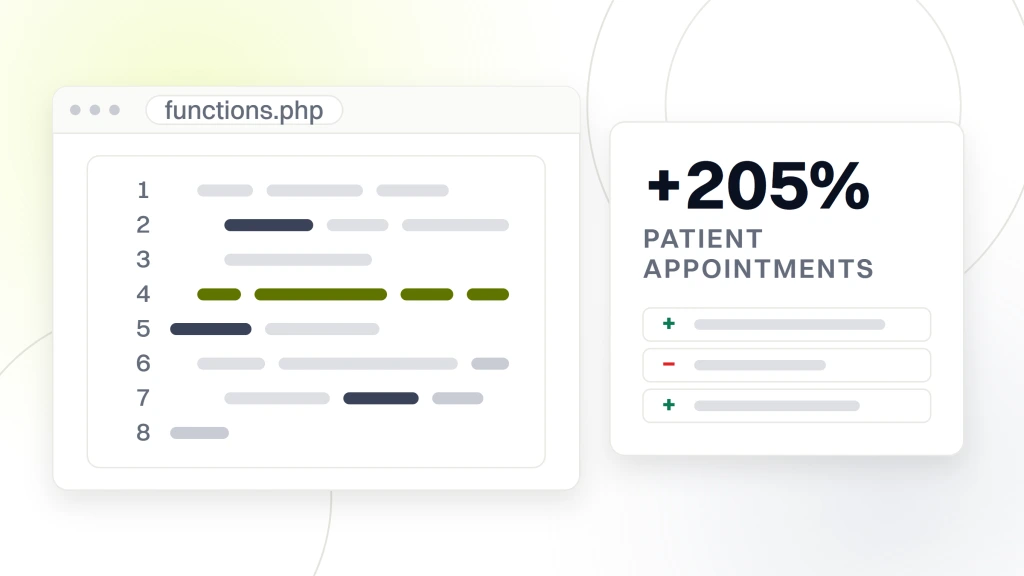
Real results back this up. Pain Cure Clinic, a chiropractic and wellness practice, drove 205% more patient appointments and 289% more organic traffic through education-led content and a maintained, secure site foundation. Reviews climbed 162% to a 4.9-star average across the same window. A site that stays clean is the base layer every one of those growth numbers gets built on. For related weekly work see marketing tracking maintenance for chiropractors.
The math works since prevention is 20x cheaper than recovery. A single emergency malware cleanup runs $800 to $2,500, plus the SEO recovery cost, plus the lost patient bookings during downtime. Weekly maintenance for 4 to 6 hours per month at retainer rates prevents nearly every one of those incidents before they start.
WordPress updates for chiropractors are boring, repetitive, and non-negotiable. Skip a month and you’re gambling with patient data and your local ranking. Run this workflow every Monday, log the results, and audit quarterly. When you’re ready to hand it off, our chiropractor website maintenance program covers the whole update cycle. WordPress updates for chiropractors compound. Every clean week protects the next, and steady patching outperforms heroic quarterly cleanups every time.